Status Settings (Machine States)
Purpose
Status settings define machine states used for KPI calculation and analysis. Each state represents an operating condition of the machine.
Incorrect status configuration can distort KPIs and dashboards. Limit changes to trained and authorized personnel.
Key concepts
Each machine state typically includes:
- Index: numeric identifier
- Texts per language: what users see in dashboards and reports
- Color and icon: visual identification
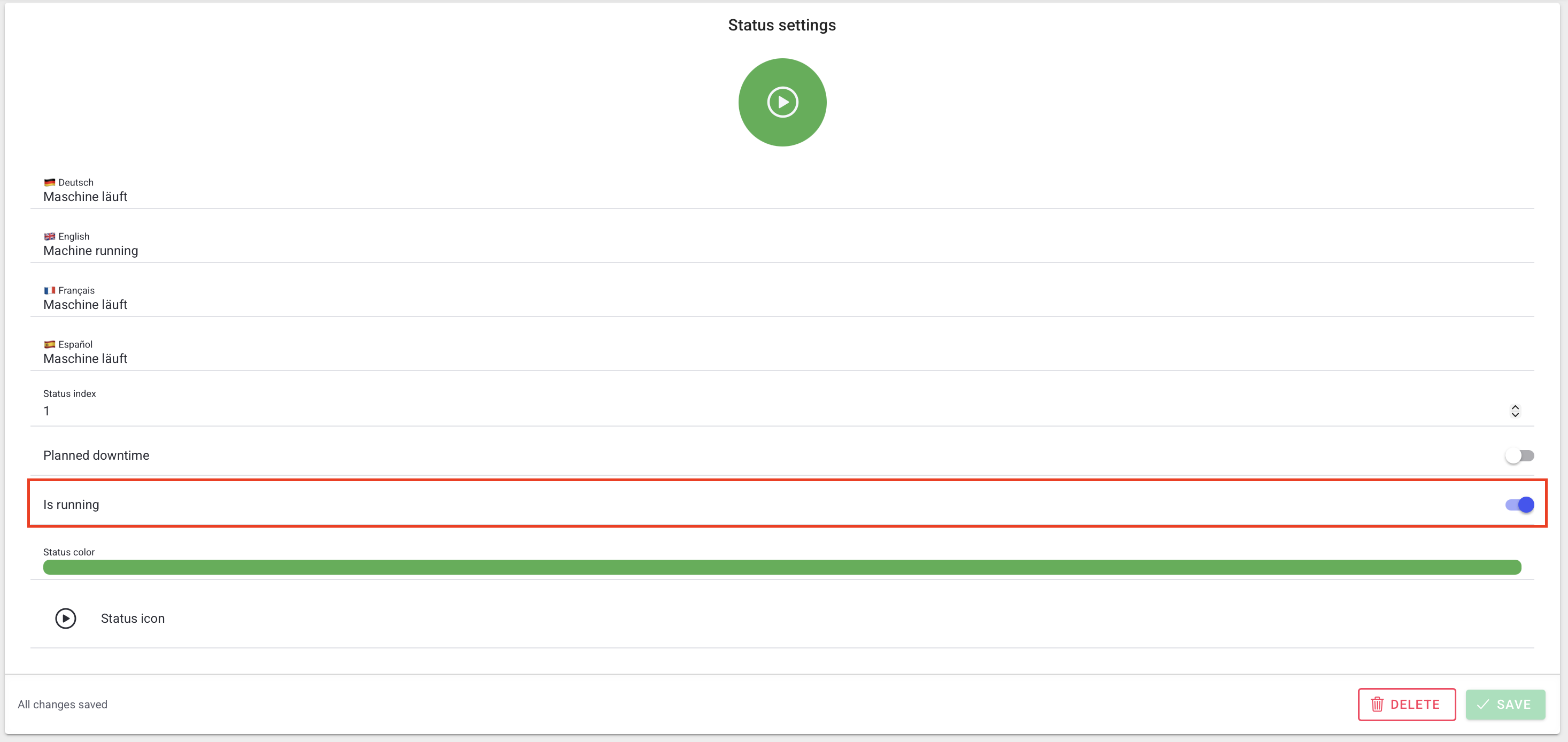
- Running toggle: whether the system considers the machine to be producing in this state
- Planned downtime toggle: whether downtime in this state is expected and should not reduce availability
The same state definitions are reused by dashboard widgets such as Machine status live, Machine Status Over Time, and Machine Status Distribution, so changes here affect both live views and historical reports.
Running flag
The Running flag directly affects performance-related KPIs.
Be careful: if a producing state is not marked as running, calculated performance can become unrealistic.
Example (names and layout may vary by deployment):
Planned downtime flag
Planned downtime marks stops that are expected (for example cleaning or scheduled maintenance).
This helps avoid availability being penalized for planned stops.
Transitional states
Some machines have transitional states (starting, initializing, moving to safe position). If parts are still produced or counted in these states, configure them correctly to avoid KPI distortion.
Steps (edit a machine state)
- Open Settings > Machines.
- Select the machine.
- Open Status settings.
- Select a state.
- Update fields (texts, toggles, color, icon).
- Select Save.
Steps (add a machine state)
- Open Settings > Machines > [Machine] > Status settings.
- Select Add status.
- Fill in:
- texts per language
- index
- planned downtime toggle
- running toggle
- status color
- status icon
- Select Save.
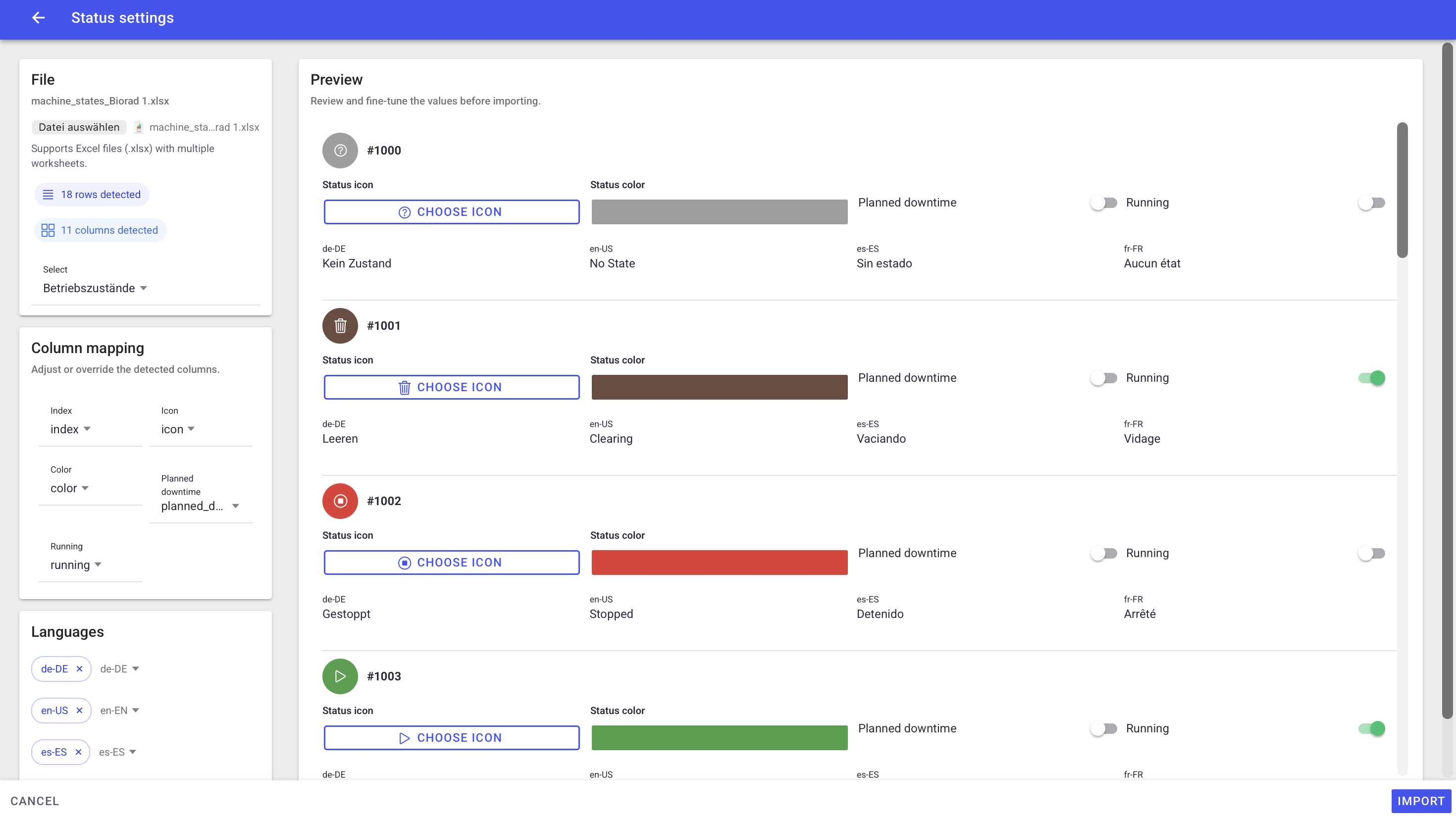
Steps (import machine states from Excel)
- Open Settings > Machines > [Machine] > Status settings.
- Select Import (if available).
- Choose the Excel file and worksheet.
- Map columns, typically:
- index
- icon
- color
- planned downtime flag
- running flag
- Map language columns (for example: de-DE, en-US, es-ES, fr-FR).
- Review the preview and adjust values.
- Confirm the import.
Example (names and layout may vary by deployment):
What users see
- A list of machine states for the selected machine.
- An edit view with toggles and multilingual text fields.
- Optional Excel import UI:
- row/column detection
- column mapping
- language mapping
- preview before import
Best practices
- Configure states with machine experts who know how the PLC/state model behaves.
- Validate KPIs after changes (Availability, Performance, OEE).
- Keep translations consistent so operators can identify states quickly.
- Review status colors and icons together with the dashboard widgets so the live and historical views remain readable.
Troubleshooting
- KPIs look wrong after changes -> Running/planned downtime flags are misconfigured -> Re-check recent edits and transitional states -> Escalate with machine name and affected state indices
- Imported states look incorrect -> Column mapping or language mapping wrong -> Re-import with corrected mapping -> Escalate with the Excel template and a screenshot of the mapping (if allowed)