Import Node Definitions
Purpose
Import NodeID definitions in bulk instead of adding them one by one — useful for large machines or vendor-provided exports.
Steps
- Open a connection from OPC UA Connections.
- In the connection actions, open Import.
- Choose the file and set the namespace if required.
- Review the Preview (see below), adjust the filters, and confirm.
- Start the import and review the summary (parsed, deleted, nodes, reasons).
Preview, filter and diagnostics
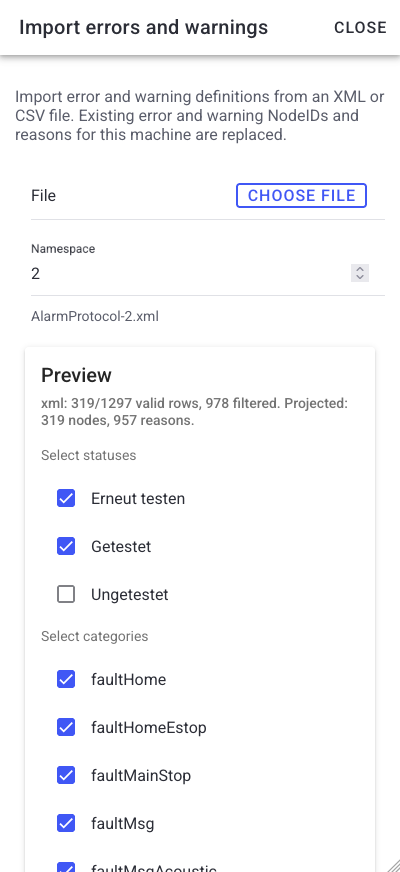
Before an import is applied, the app analyzes the file and shows a Preview so you can check exactly what will be imported. You must review the preview before importing.
The preview shows:
- Valid rows — how many of the file's rows are valid (for example
120/128 valid rows, 8 skipped). - Filters — Select statuses and Select categories to choose which entries (for example error reasons and NodeIDs) are actually imported.
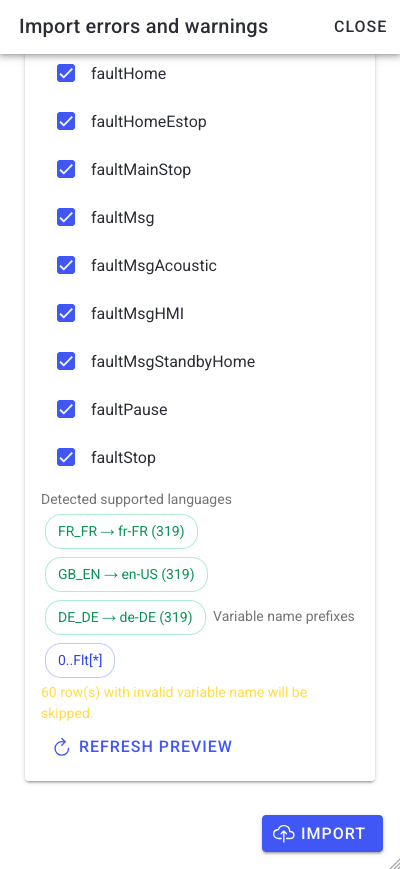
- Language coverage — Detected supported languages versus Unsupported languages. Language keys that the app does not support (only the configured locales such as de-DE and en-US are kept) are dropped on import.
- Variable-name diagnostics — Variable name prefixes are checked; rows with an invalid variable name are reported and skipped.
- Refresh preview — re-run the analysis after changing filters.
Note
The guided import preview (with status/category filters and language/variable diagnostics) was introduced across app versions v9.36.0–v9.38.0. Older deployments may show a simpler import dialog without the preview step.
Vendor imports
Some sites use vendor-specific flows (for example a Harro Höfliger CSV/XML default). These appear as a dedicated add-flow and parse the vendor export into NodeIDs and scrap reasons. Availability depends on your deployment.
What users see
An import dialog with a file picker and namespace field, a Preview with row counts, status/category filters and language/variable diagnostics, and a summary of what was parsed, added, or removed.
Troubleshooting
- Import parses nothing -> Wrong file format or namespace -> Confirm the export format and namespace, then retry.
- Nodes were unexpectedly deleted -> Import replaced existing definitions -> Review the summary and re-add missing nodes.