AI Predictions
Purpose
Use AI Predictions as an early-warning view for likely upcoming machine errors. It highlights which errors are most likely to occur next and lets you jump into guidance suggestions or historical error analysis.
Think of AI Predictions as an "early warning dashboard" for your machine.
Quick start
- Open App > AI Predictions.
- Review the top prediction (highest probability).
- Select Help to open related guidance suggestions.
- Select Analysis to review historical data for the predicted fault.
- Optional: select Ignore to hide a prediction from future consideration (if your role allows it).
For details, see:
What users see
Example (layout and predictions vary by machine and deployment):
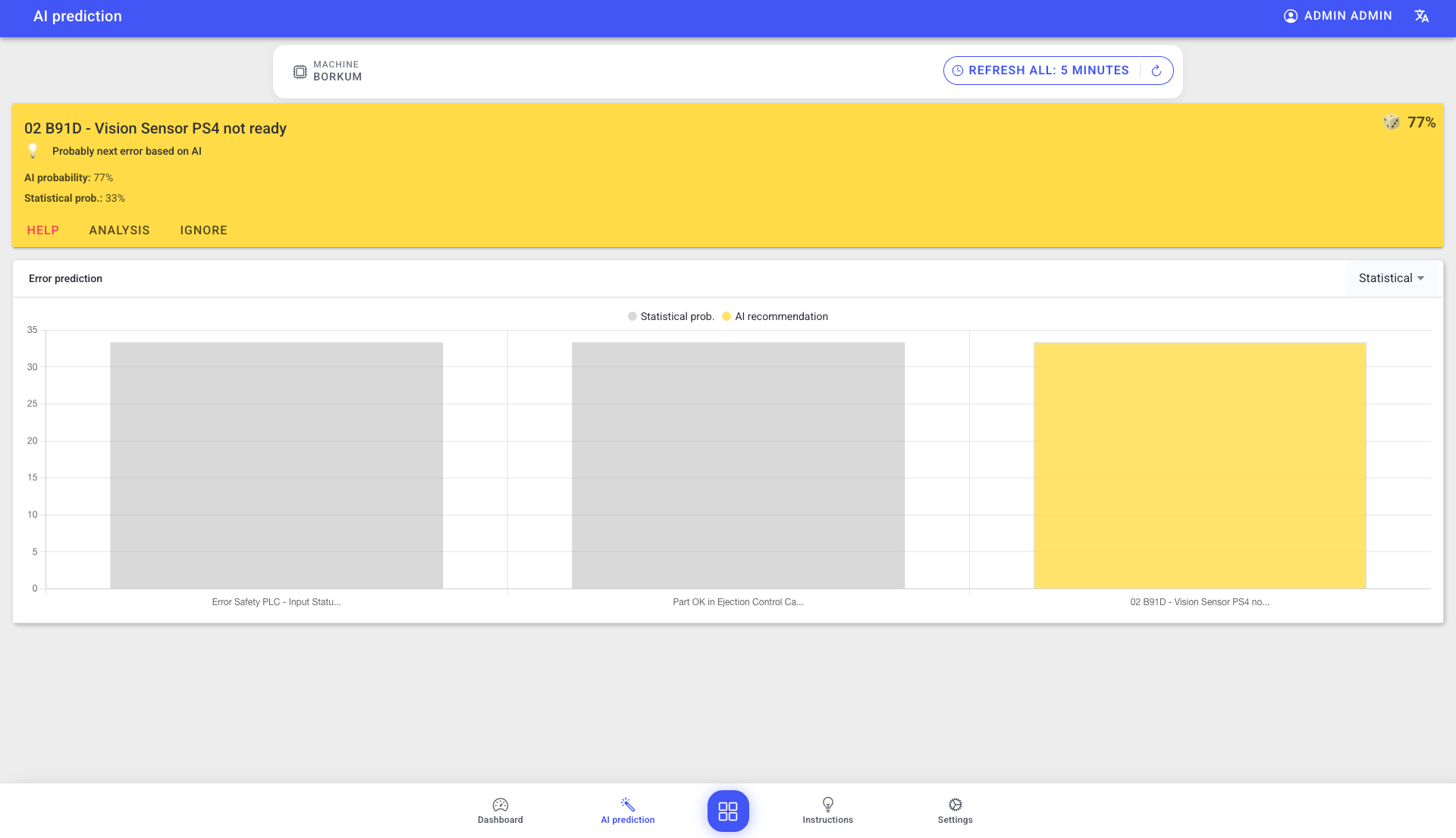
- A machine selector and refresh control in the filter bar (no time-period selector on this view).
- Prediction cards with:
- a title
- two probability scores (AI and statistical)
- action buttons for Help, Analysis, and optionally Ignore
- A color hierarchy for predictions:
- Yellow card: highest probability
- Blue cards: additional predictions you can select
- A bar chart ("Error prediction") comparing predicted upcoming faults and their probabilities, with a legend for Statistical prob. and AI recommendation
- A chart filter (top-right of the chart) that can switch between Statistical, AI, and All
Best practices
- Treat AI Predictions as guidance, not an automatic decision: always validate with your process knowledge.
- Use Analysis when you need evidence from historical events.
- Use Help when you want to find matching guidance before creating new instructions locally.
Troubleshooting
-
AI Predictions is empty -> No predictions available for the selected machine/time period -> Switch machine or time window and retry -> If this persists for a machine that normally has predictions, contact support
-
Help does not offer creation of new guidance -> Missing permissions -> Use existing guidance or follow your SOP -> Ask an admin to review your guidance permissions