Alarms
Purpose
Detect and respond to active issues in a structured way.
Steps
- When an alarm notification appears, read the alarm text carefully (machine + condition).
- Select Acknowledge to close the alarm.
- Perform the corrective action defined by your team (often via an instruction or maintenance SOP).
- If the alarm repeats frequently, report it to your supervisor or maintenance contact.
What users see
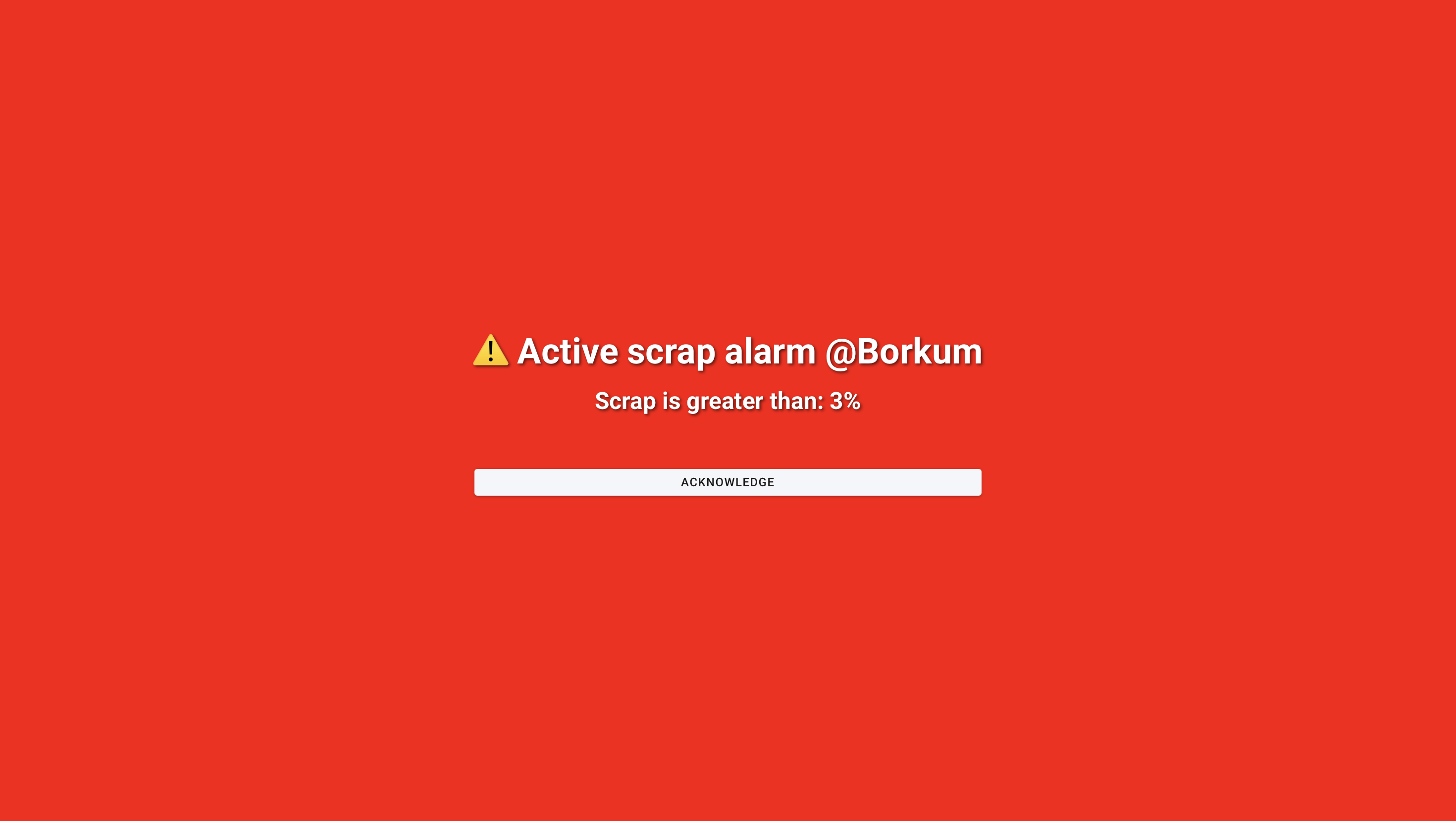
- A prominent alarm notification (often full-screen).
- Alarm text including machine name and the exceeded condition (for example: scrap threshold exceeded).
- An Acknowledge button that must be confirmed before returning to normal operation.
Example (layout may vary by deployment):
Best practices
- Treat alarms as time-critical signals: acknowledge quickly, then act safely.
- If your site uses instructions, follow the instruction steps to standardize response.
- Escalate early if the alarm indicates safety risk or repeated quality loss.
Troubleshooting
If you are not seeing alarms when you expect them:
- No alarms appear, even when a condition should trigger -> Wrong machine selected, missing permissions, or configuration not set -> Verify the selected machine on the Dashboard, then confirm alarm configuration with a supervisor -> Ask a supervisor to review Manage Alarms for the affected machine