Export Data
Purpose
Use Export Data to download production data for selected machines and time periods. Exports can be used for external analysis, reporting, audits, or integrations.
Steps
- Select the Export tab in the app navigation.
- Select the machine(s) and time range you want to export.
- Select one or more file formats:
- CSV: CSV export packaged as a
.zip - XLSX (Excel): Excel export packaged as a
.zip - Select Download.
What users see
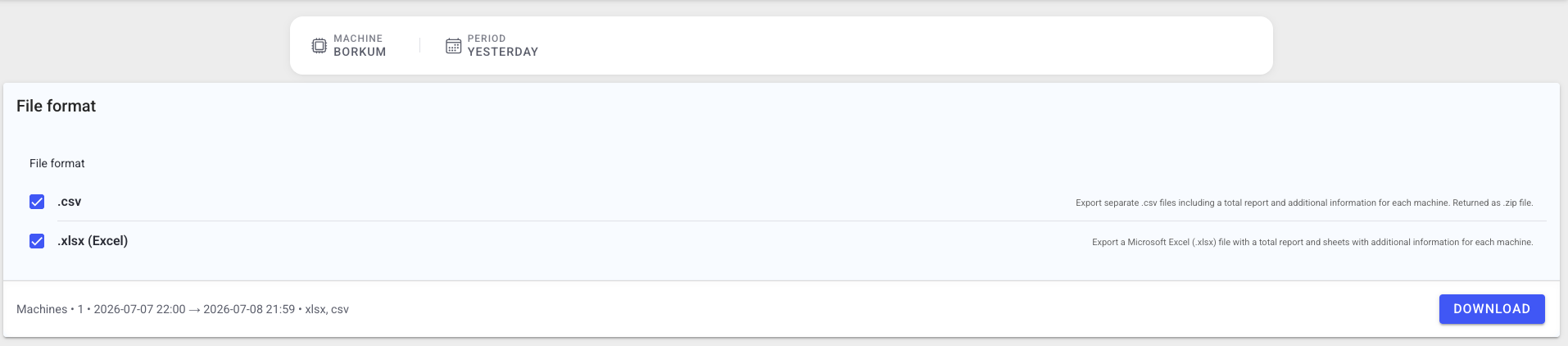
- Machine selector and time range filter at the top (defines the dataset).
- File format selection with separate checkboxes for
CSVandXLSX. - A download button that starts the selected export downloads.
What the export contains
Both formats contain the same data for the selected machines and period. The XLSX workbook organizes it into several sheets; the CSV export contains one file per sheet.
Download example exports
Anonymized samples (machine shown as Demo Line 1, IDs replaced, event log trimmed) so you can see the exact layout before running your own export:
Summary (sheet report / report_summary.csv)
One row per machine, preceded by header lines with the time window, the machine list, and any "no data" notes.
| Machine | OEE | Performance | Availability | Quality | Good Parts | Bad Parts | Production Time | Downtime Planned | Downtime Unplanned |
|---|---|---|---|---|---|---|---|---|---|
| Demo Line 1 | 15.96% | 75.89% | 21.35% | 98.50% | 55,079 | 841 | 307.02 | 0 | 1130.98 |
KPIs are percentages; times are in minutes.
Per-machine detail (one sheet per machine / <machine>.csv)
Two tables side by side:
- Downtime:
Sensor·Duration (min)·Number of Occurrence·Average Duration (min) - Scrap:
Sensor Name·Number of Occurrences
Machine events (sheet machine_events / machine_events.csv)
One row per status change or fault message:
Machine ID · Machine Name · Event Type · Timestamp (local time zone) · Timestamp (UTC) · Status Number · Message Type · Message Index · plus one text column per configured language.
Machines with no data in the selected range are listed in a "No data for: …" note and produce no detail sheet.
Best practices
- Verify machine and time range before exporting.
- Use XLSX for human review and CSV for downstream tools.
- If you select both formats, expect separate downloads.
- Treat exported files as sensitive operational data and follow your company policy when sharing.
Troubleshooting
-
Download does not start -> Browser blocked the download or popup handling -> Allow downloads for the site and retry -> Ask IT if browser policies block downloads
-
Export file is empty or missing expected rows -> Wrong machine/time filter -> Adjust filters and export again -> Contact support with the selected machine and time range