Machines
Purpose
Use Machines to define your machine list and configure how machine status, scrap, and messages are interpreted in dashboards and analyses.
These settings can affect KPIs and analyses. Limit changes to trained and authorized personnel.
Steps (quick start)
- Open Settings > Machines.
- Create a new machine or open an existing one.
- Configure the required machine settings:
- status settings (machine states)
- scrap causes
- message causes (errors and warnings)
- ignore messages
- Select Save after changes.
What users see
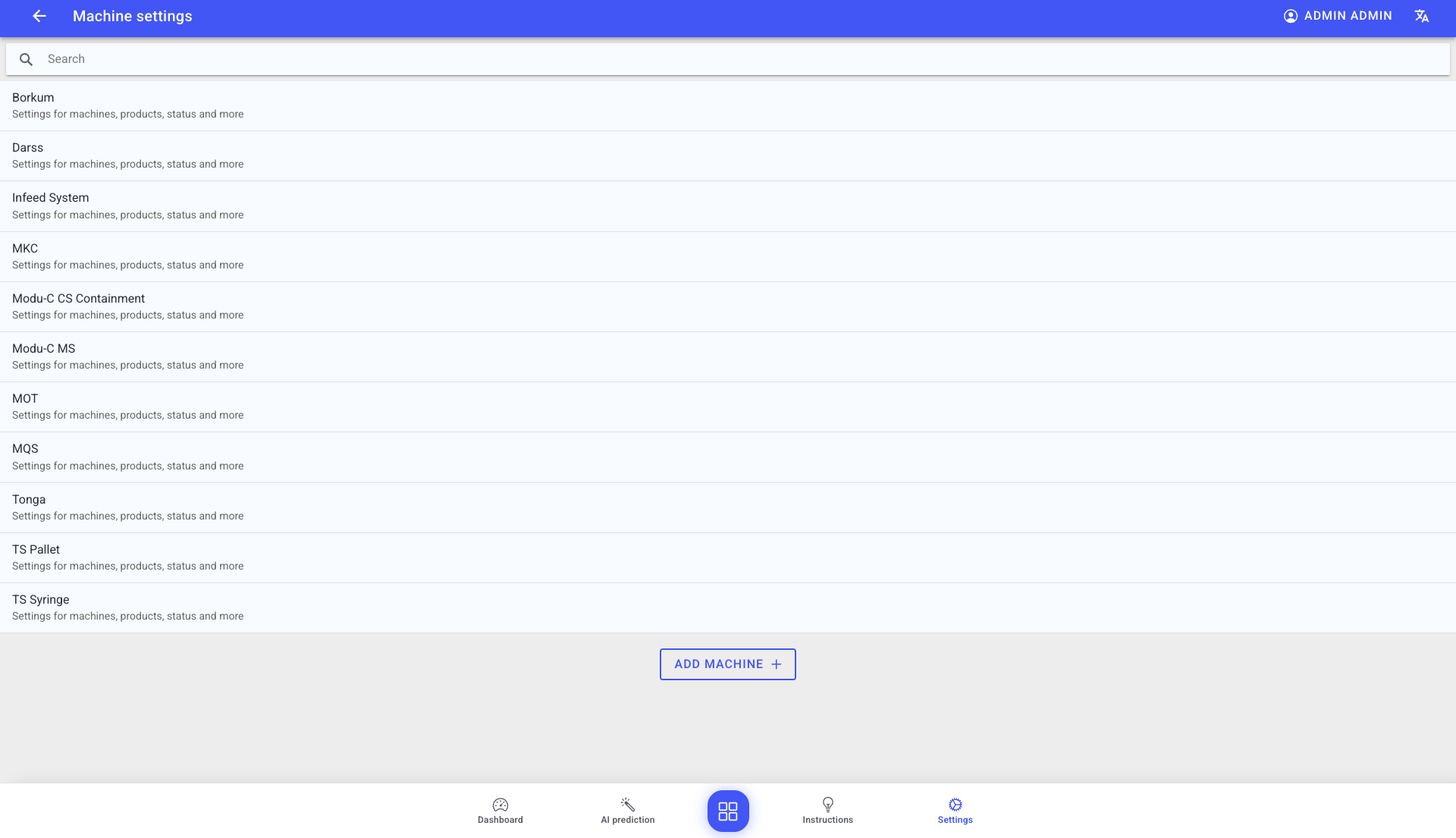
- A machine list with search and an Add machine action.
- A machine detail view with configuration sections such as:
- status settings (machine states)
- scrap causes
- message causes (errors and warnings)
- ignore messages
- Import dialogs for Excel-based setup with column mapping and previews.
Deep dive topics
Use these pages when you need more detail:
| Topic | What it covers |
|---|---|
| Machine list | Add, edit, and delete machines. |
| Status settings | Machine states, running/planned downtime flags, and Excel import. |
| Scrap causes | Scrap cause mapping, translations, and Excel import. |
| Message causes | Error/warning messages, translations, and Excel import. |
| Ignore messages | Hide irrelevant messages from analytics. |
Machine list tasks (summary)
Create a machine
- Open Settings > Machines.
- Select Add machine.
- Enter a machine name.
- Optional: add an image.
- Select Save.
Edit a machine
- Open Settings > Machines.
- Select the machine from the list.
- Update name and/or image.
- Select Save.
Delete a machine
Deleting a machine removes it from machine-specific views and analyses. Only do this if the machine is permanently decommissioned.
Best practices
- Treat machine settings as global configuration with KPI impact.
- Review running and planned downtime flags carefully with machine experts.
- Keep translations meaningful so dashboards and reports remain usable.
Troubleshooting
- You cannot access Machines -> Missing permission -> Ask an admin to update your role -> Escalate to support if you cannot identify the correct role
- KPIs look wrong after status changes -> Running/planned downtime flags are misconfigured -> Re-check recent changes and validate transitional states -> Escalate with the machine name and the changed state indices