Guidance View
Purpose
Follow a guidance entry step-by-step to execute recurring tasks consistently and safely (for example cleaning, setup, troubleshooting, scrap reduction, or warning correction).
Steps
- Open App > Guidance.
- Open a guidance card.
- Use the step list to navigate steps, or use Next to proceed.
- On the final step, select Complete to return to the Guidance browser.
What users see
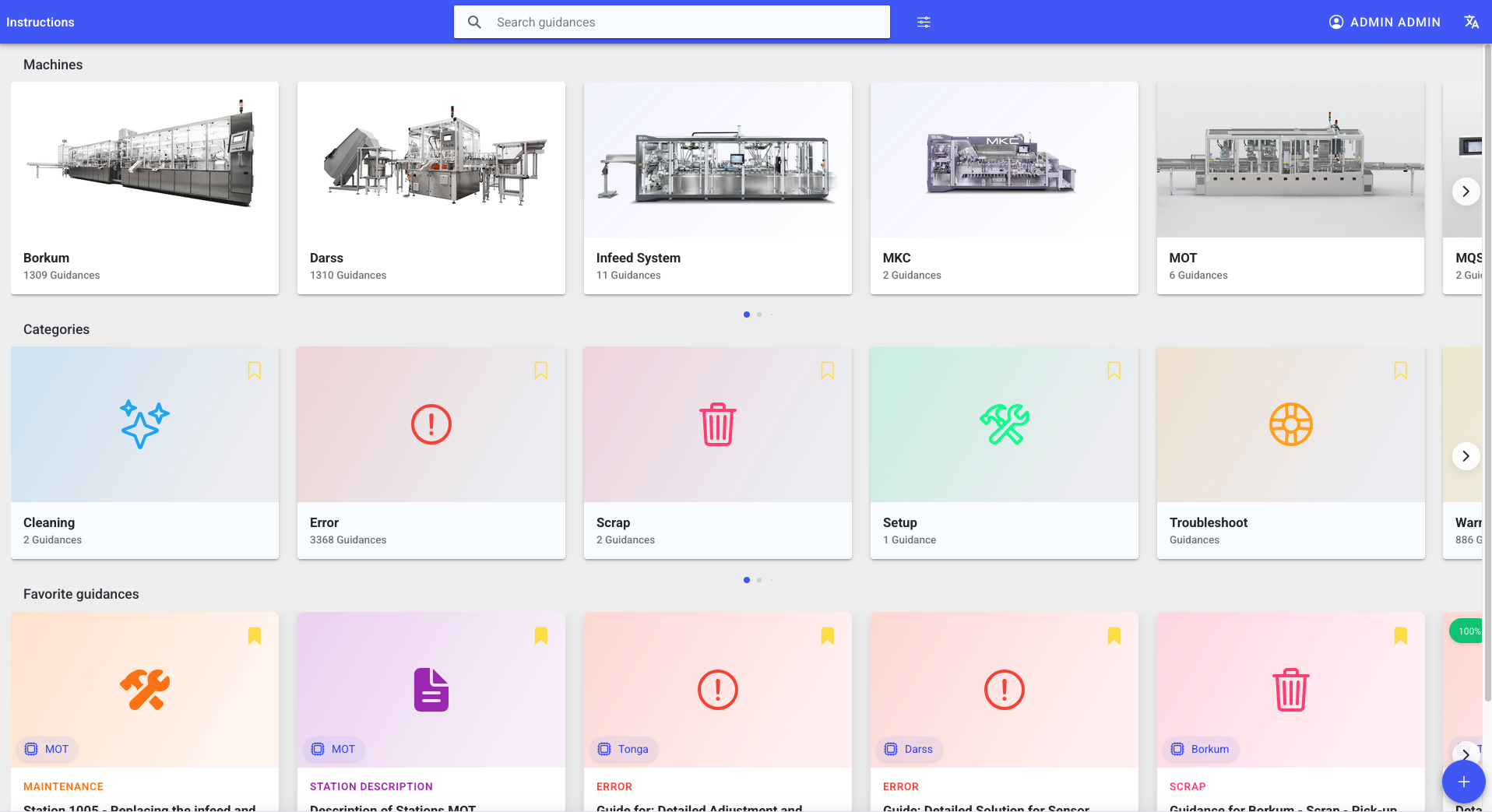
- A step navigation list (step numbers and titles).
- The selected step content, which can include:
- text
- images
- videos
- structured elements (lists, checklists, links)
- Optional actions (availability depends on permissions and sign-in):
- add to favorites
- like/dislike
- view/add comments
- open a details view (author, dates, version info)
Comments and feedback
If enabled, comments are useful for:
- shift handovers
- reporting deviations
- documenting issues during execution
Note: some deployments require sign-in to like/dislike or add comments.
Best practices
- Follow the steps in order, especially for safety- or quality-critical procedures.
- Use comments to record deviations and outcomes (if your site policy allows it).
- If the guidance is outdated, report it to the owner instead of improvising.
Troubleshooting
- The Complete button is missing -> You are not on the last step -> Use Next to reach the final step -> Escalate if the step flow is stuck or does not advance
- You cannot add comments or likes -> Not signed in or missing permission -> Sign in and retry -> Ask an admin to review your role if this should be allowed