Machine List
Purpose
Use the machine list to view, create, and manage machines that appear across dashboards, analyses, and exports.
Machines are global objects: once a machine is created, it can be used across the system (subject to permissions).
Steps (create a machine)
- Open Settings > Machines.
- Select Add machine.
- Enter a Machine name.
- Optional: add a machine image.
- Select Save.
Steps (edit a machine)
- Open Settings > Machines.
- Select a machine from the list.
- Update the name and/or image.
- Select Save.
Steps (delete a machine)
- Open Settings > Machines.
- Select the machine.
- Select Delete (trash icon).
- Confirm the deletion.
Deleting a machine removes it from machine-specific views and analyses. Only do this if the machine is permanently decommissioned.
What users see
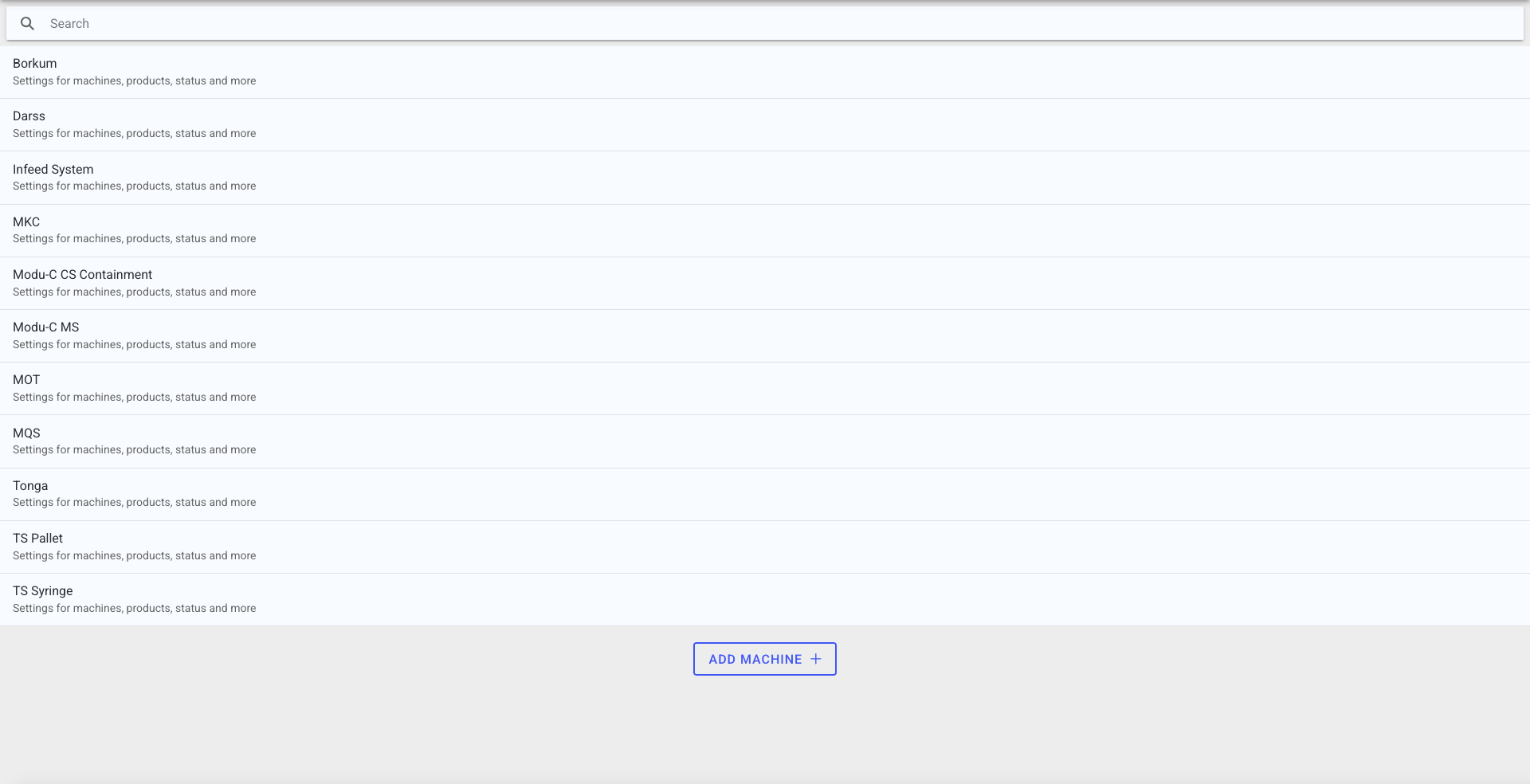
- A machine list showing configured machines.
- Search by machine name.
- An Add machine button (if permitted).
- A machine detail view that links to:
- status settings (machine states)
- scrap causes
- message causes (errors/warnings)
- ignore messages
Best practices
- Use a consistent naming scheme (line/station naming) so search and dashboards stay predictable.
- Add images only if they help operators select the correct machine quickly.
- Avoid deleting machines unless you are sure they are no longer used anywhere.
Troubleshooting
- You cannot add or edit machines -> Missing permission -> Ask an admin to update your role -> Escalate to support if you cannot identify the correct role
- A machine is missing -> Search filter active or machine not configured -> Clear filters and re-check -> Ask an admin to confirm the machine exists in Settings