Backup (Import and Export)
Purpose
Export guidance for migrations and rollouts, or import guidance to restore or replicate instruction sets.
Where to find backup
In the current app version, import/export is available from the Guidance search/filter flow.
See also: Guidance Backup (Import and Export)
Steps (export)
- Open App > Guidance.
- Open the search view (for example by searching or selecting a machine/category).
- Open Import / Export.
- Optional: enable Export full history to include all instruction versions.
- Download and store the export securely.
The export typically includes the guidance that matches your current filters.
Steps (import)
- Open Import / Export.
- Select Import.
- Select the backup file.
- If available, configure import options:
- overwrite duplicates
- import with history (all versions vs. latest only)
- Confirm the import.
What users see
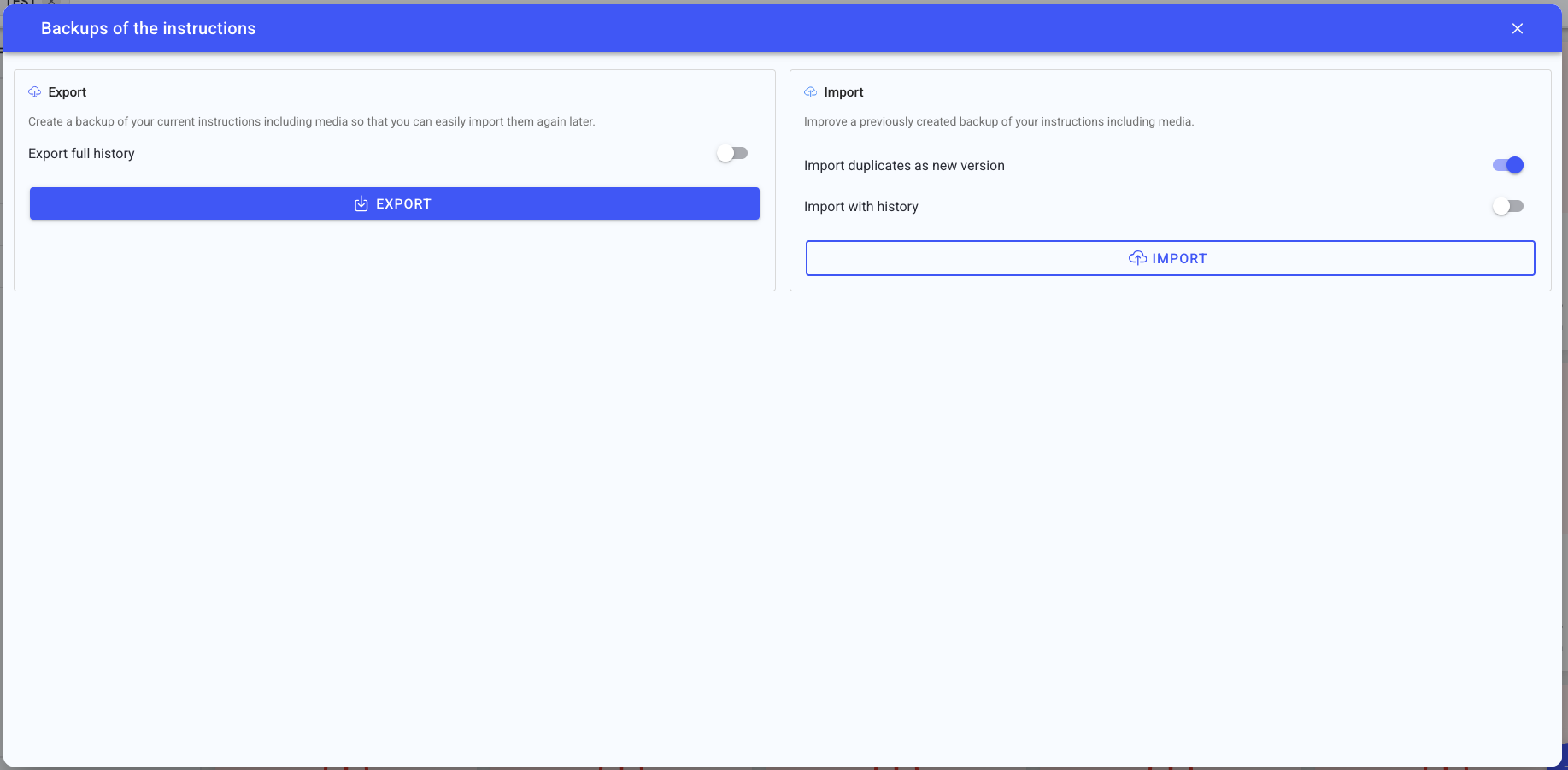
- Export/import actions.
- Optional toggles for:
- export full history
- import duplicates as new versions
- import with history
Best practices
- Export a backup before major instruction edits or migrations.
- Treat exported files as sensitive operational data.
- Restrict restore permissions to trusted roles.
Troubleshooting
- Import fails -> Backup file is invalid or incomplete -> Retry with a known-good export -> Escalate with the error message and backup timestamp
- Imported guidance looks duplicated -> Import options did not overwrite matching items -> Re-import with Overwrite duplicates if appropriate -> Escalate to an admin if you need a clean reset