Search and Filters
Purpose
Use search and filters to find the most relevant guidance quickly, especially when many machines and categories exist.
Steps (search)
- Open App > Guidance.
- Enter a keyword in the search field (for example a fault name, message text, or component).
- Review the search results and open a guidance card.
Steps (apply filters)
- Open the filter panel (if available).
- Filter by one or more of:
- machine
- category
- author
- Optional: enable toggles such as:
- favorites only (requires sign-in)
- AI-generated only (if available in your deployment)
- Remove filters to broaden the result set, or clear all filters to return to the browser.
Steps (sort results)
If your deployment supports sorting, choose one of:
- relevance
- rating
- last updated
What users see
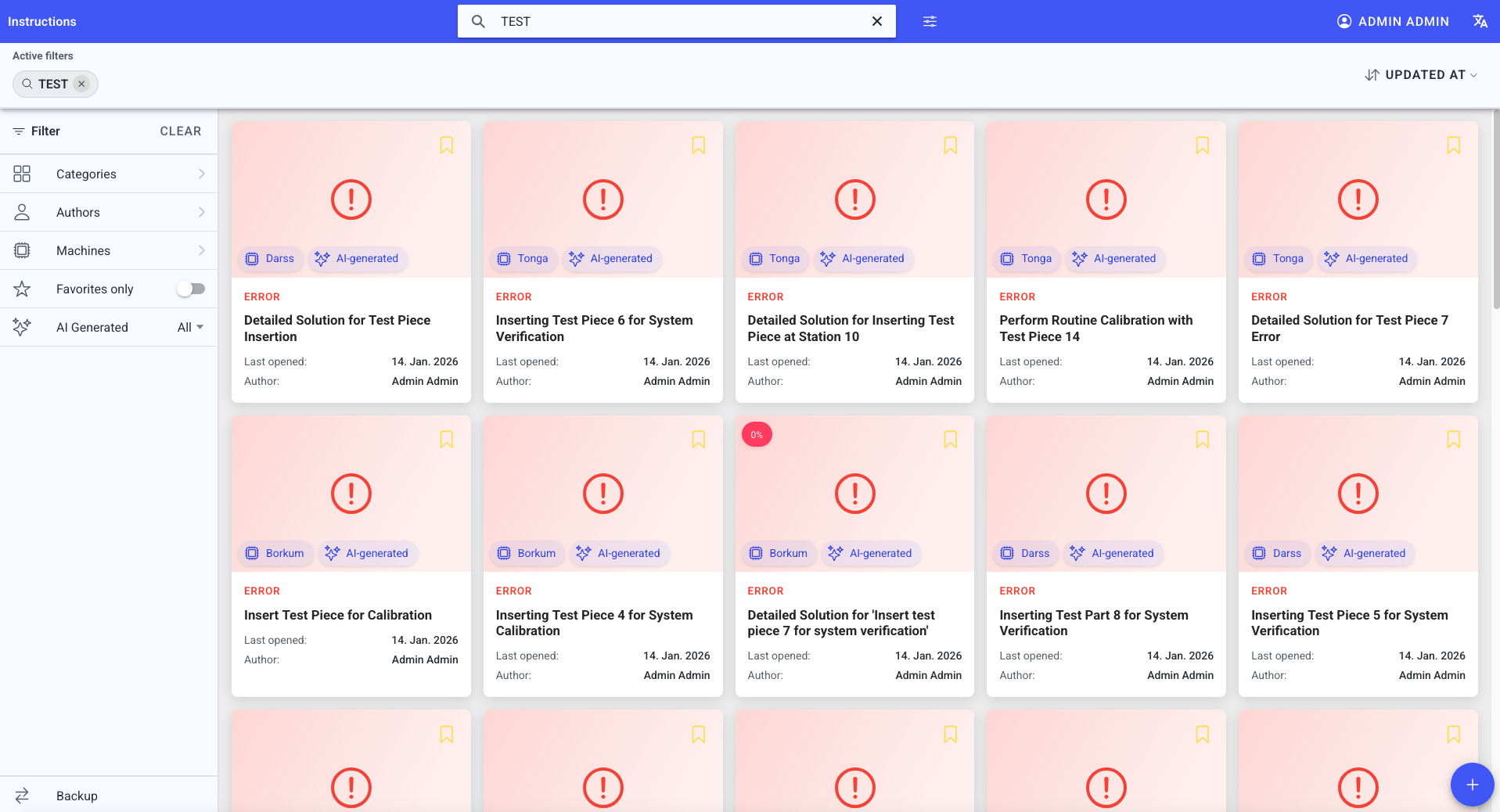
- A result list with guidance cards.
- Active filters displayed at the top (removable).
- A filter side panel (if available) with:
- category/author/machine filter lists
- toggles (favorites only, AI-generated only)
- an Import / Export entry
Guidance cards (typical)
A guidance card can include:
- rating (0-100)
- favorite toggle (bookmark)
- category icon and color
- machine and AI tags
- title, author, and "last opened/updated" metadata
Best practices
- Start with machine + category, then add a keyword if needed.
- Prefer highly rated instructions when multiple options exist.
- If you cannot find a guidance entry, widen filters before escalating.
Troubleshooting
- Search returns no results -> Filters too restrictive or keyword mismatch -> Remove filters or try a simpler keyword -> Escalate with the keyword and selected filters if you expected a result
- Import / Export is missing -> Missing permission or feature availability -> Ask an admin to confirm import/export access for Guidance