API Keys
Purpose
Use API Keys to create and manage credentials for external programmatic access to the public API (reports, drilldown analytics, and read-only machine config).
Steps (create a key)
- Open Settings > API Keys.
- Select Create (top-right).
- Enter a name for the key.
- Choose the permissions this key should have (one or more of: reports, drilldown analytics, read-only machine config).
- Optionally set an expiration date. Leave it empty for a key that never expires.
- Select Save.
- Copy the displayed key immediately — it is shown only once and cannot be retrieved again later.
Steps (edit a key)
- Open Settings > API Keys.
- Select Edit on an active key.
- Change the name, permissions, and/or expiration date.
- Select Save Changes.
Editing does not reveal or change the secret value
Editing a key updates its name, permissions, and expiration only. The key's secret value itself cannot be viewed again or changed — revoke and create a new key instead if the secret may have been exposed.
Steps (revoke or delete a key)
- Open Settings > API Keys.
- On the key, select Revoke to disable it immediately (kept in the revoked list for reference), or Delete to remove it entirely.
What users see
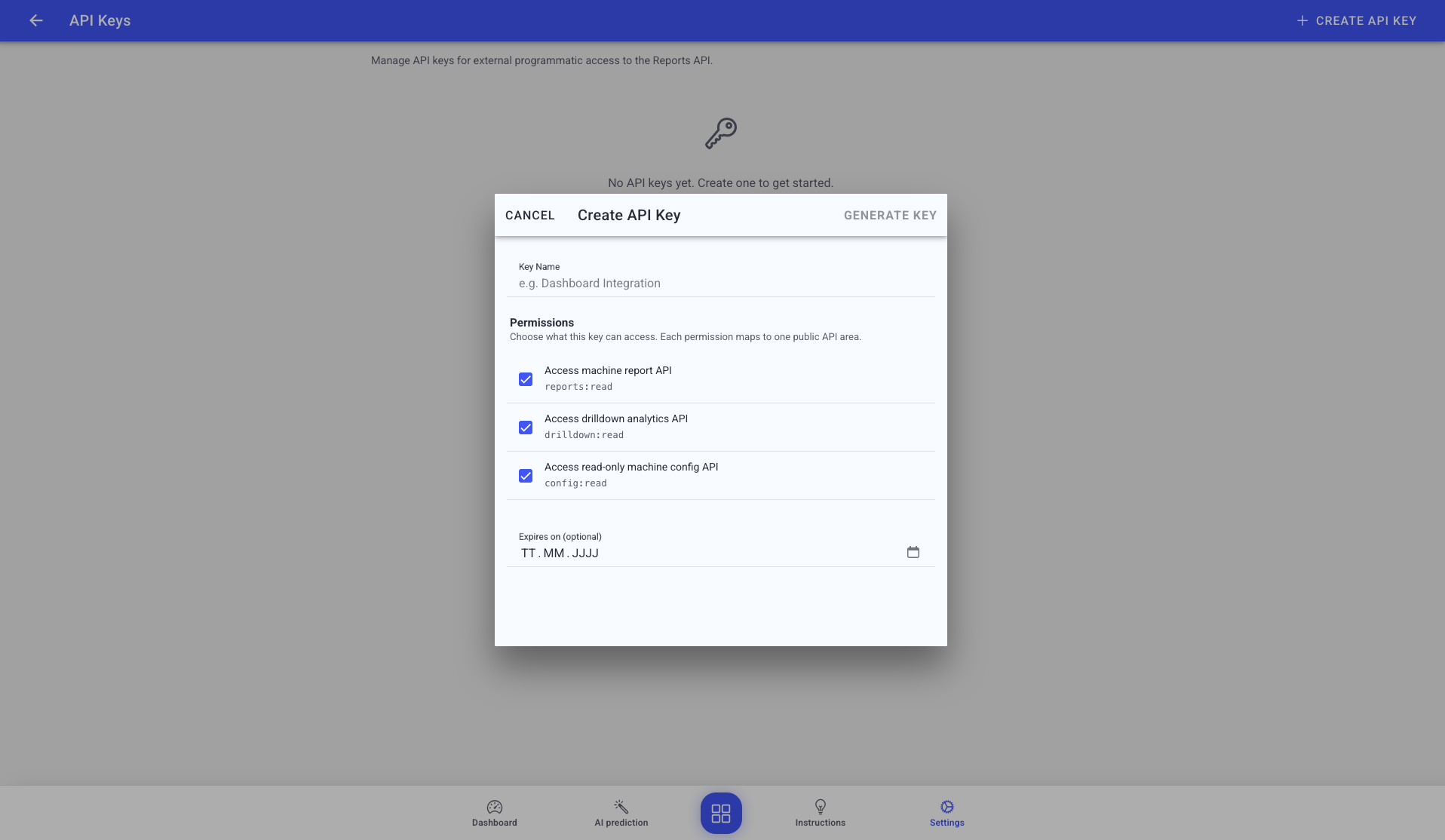
The Create / Edit dialog has a name field, a checkbox per permission (machine report, drilldown analytics, read-only machine config), and an optional expiry date:
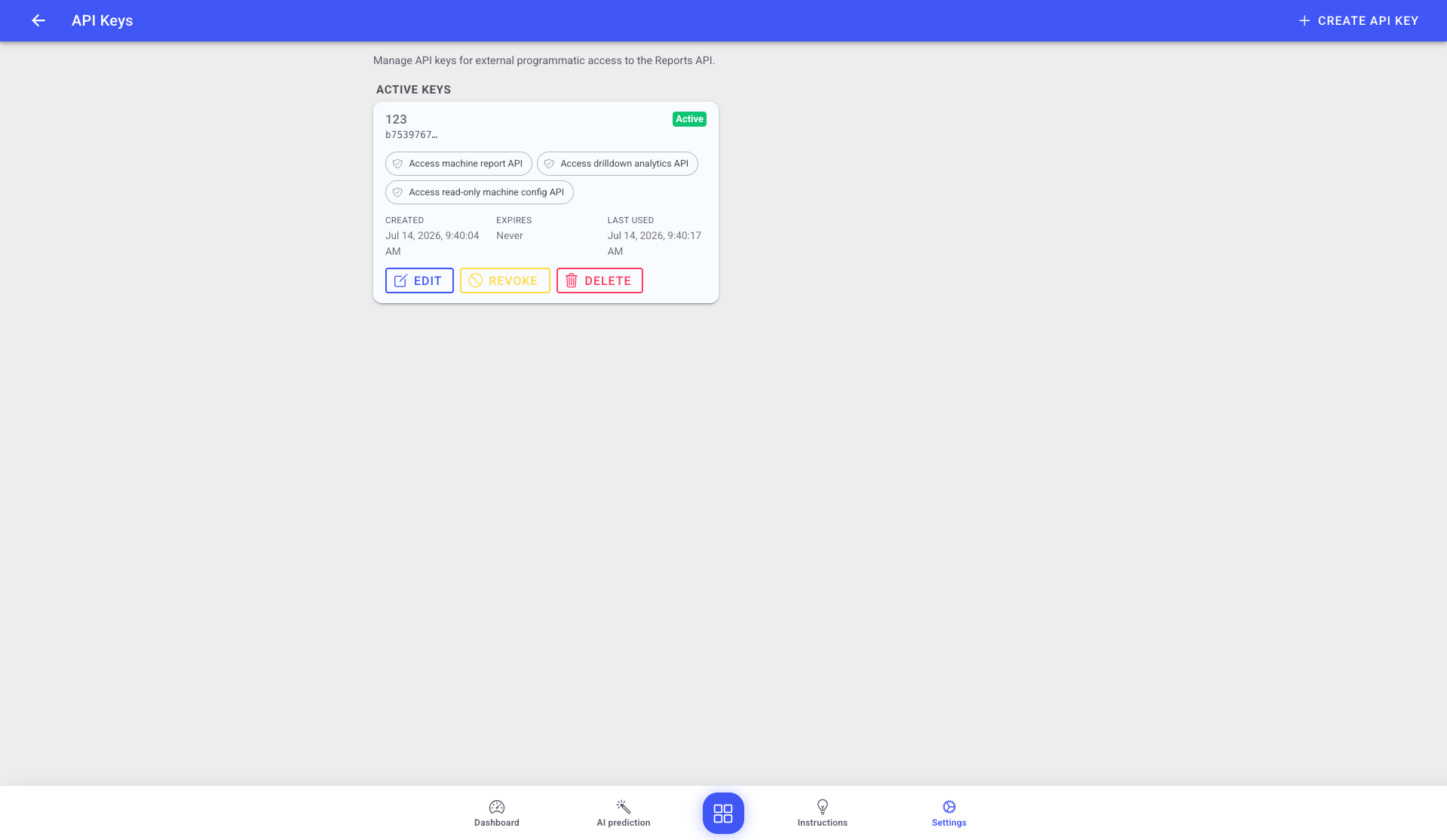
Each active key is shown as a card with its name, shortened key prefix, granted permissions, created / expires / last used dates, and the Edit / Revoke / Delete buttons. Revoked keys are kept in a separate list for reference (delete-only):
Using the Public API (Swagger UI)
Once you have a key, you can browse and try the endpoints in the interactive API documentation (Swagger UI).
- Where: Open
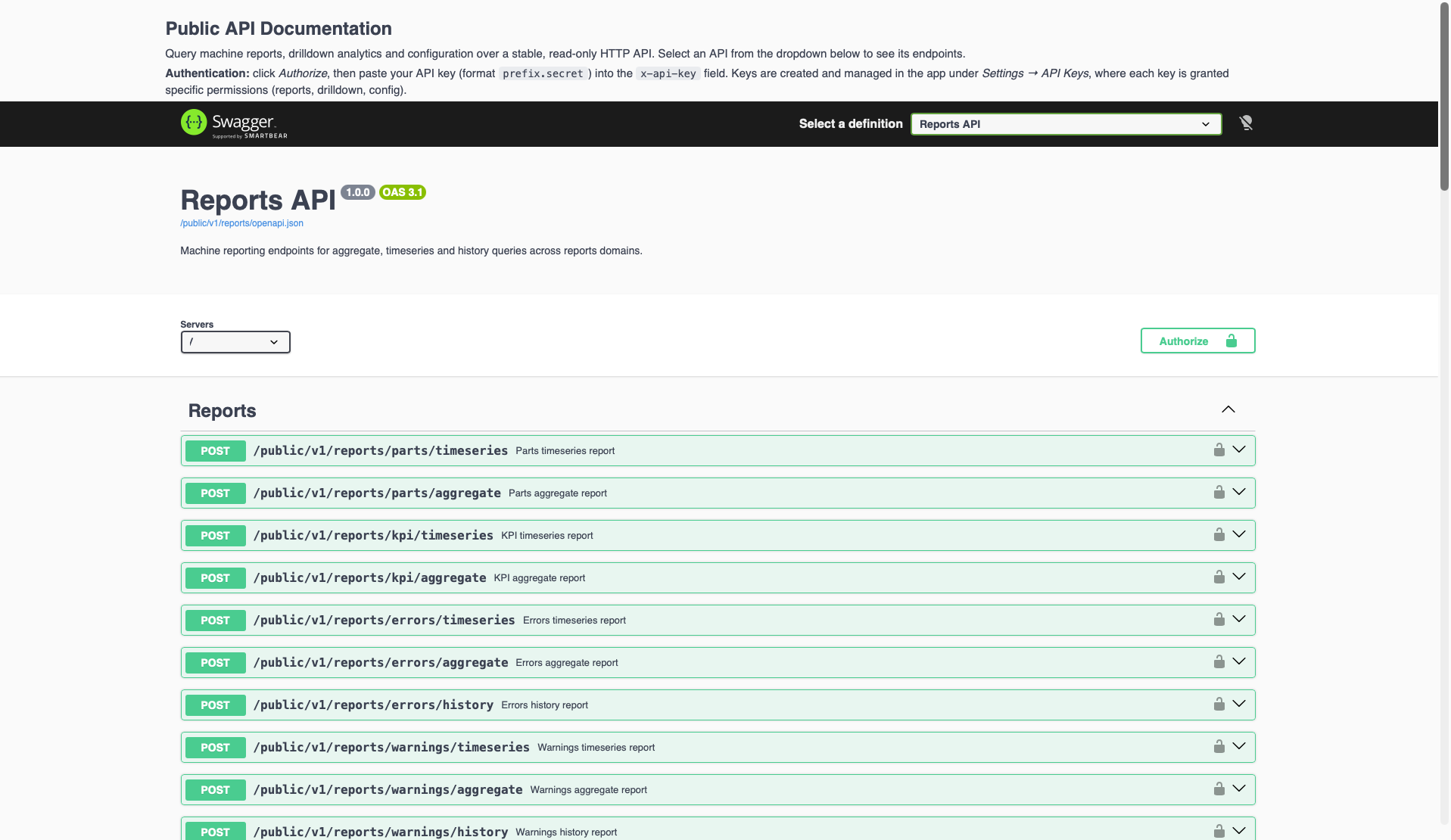
/public/v1/docson your Edge installation's address (for examplehttps://<your-edge-address>/public/v1/docs). It opens without a login — the API key is what authorizes the actual requests. - Choose an API: Use the Select a definition dropdown (top-right) to switch between the three documented APIs — Reports API, Drilldown API, and Config API. Each lists its available endpoints.
- Authenticate: Select Authorize, then paste your key in the format
prefix.secretinto the x-api-key field and confirm. Requests you send from the page then include the key. - Try an endpoint: Expand an endpoint, select Try it out, fill in the request body, and select Execute to see the live response.
A key only works for the APIs whose permission it was granted — for example a key without the drilldown permission cannot call the Drilldown API endpoints.
Troubleshooting
- Cannot see the full key value again -> Keys are shown only once at creation -> Revoke it and create a new one -> Update any external systems using the old key
- An external integration stops working after an edit -> A permission needed by that integration was removed -> Re-add the required permission via Edit -> Confirm with whoever owns the integration which permissions it needs
- A Public API request returns 401/403 -> The key is missing, malformed, or lacks the permission for that API -> Check the
x-api-keyvalue isprefix.secretand that the key has the matching permission -> Recreate the key with the required permission if needed